Kademi now lets you hold gift card and prepaid card orders for review before Blackhawk issues them, with the riskiest orders sorted to the top of the queue.
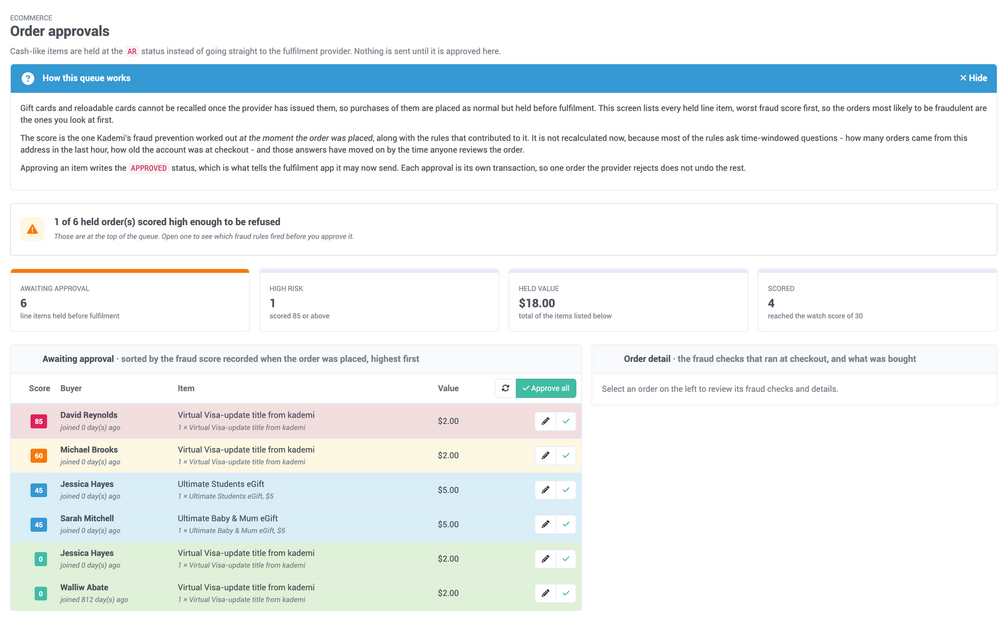 The Order approvals screen: held orders ranked by the fraud score recorded at checkout, highest first.
Most fraud is survivable because most things can be undone. A parcel can be recalled in transit. A subscription can be cancelled. A payment can be reversed.
Cash-like rewards are different. The moment Blackhawk issues a Visa reloadable card or a Prezzy gift card, the value is live and spendable, and it belongs to whoever holds the code. There's no recall. If you want to review an order, you have to do it before the card is created — and until now, there was nowhere in Kademi to do that.
How it works
Your members shop and check out exactly as before. Checkout doesn't change and there's no extra step for them. What changes is what happens next: instead of going straight to Blackhawk, cash-like items wait for a person to release them. On their order page, the member simply sees the item marked as awaiting approval.
1. The order is placedCheckout completes normally and the member gets their confirmation. Behind the scenes, Kademi's fraud prevention has already scored the purchase and recorded why. |
2. The card is heldBlackhawk items are marked awaiting approval instead of being sent. Nothing reaches the provider, so no card exists yet and nothing can be spent. |
3. A reviewer releases itSomeone with approval rights works through the queue and approves. Only then is the order sent to Blackhawk and the card issued as usual. |
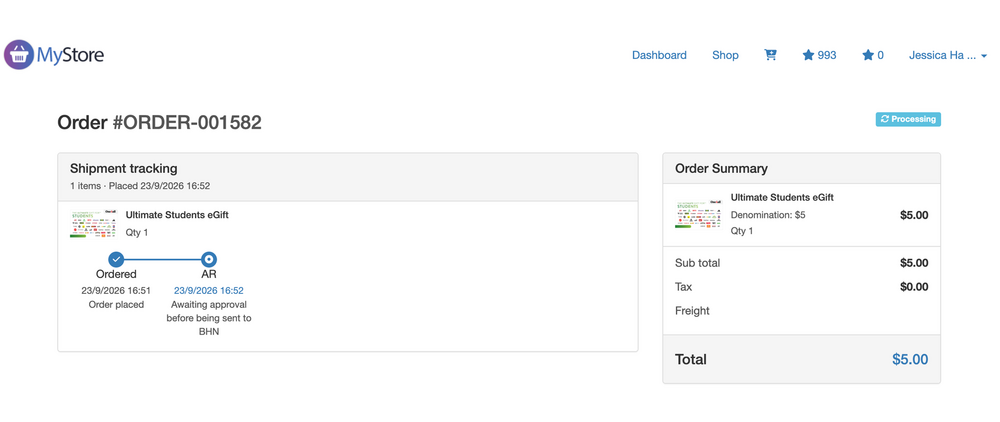
What the member sees: the order is placed, and its tracking shows it awaiting approval before it's sent to Blackhawk.
Turning it on takes one setting. In Blackhawk Marketplace settings, Send product order when now has a third option: Order approved. If you don't want the review step, leave the setting as it is and nothing changes.
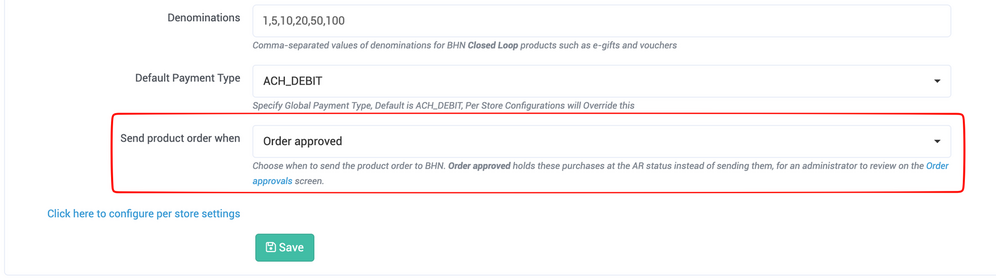 One setting switches the approval step on.
A queue that knows which orders to worry about
An approval queue on its own is a chore. It swaps "we didn't catch it" for "we have four hundred orders and no idea which one is the bad one."
This queue is built on Kademi's fraud prevention, which already scores every purchase as it happens. Orders are sorted by that score, worst first, and each row is coloured by how serious it is. When you open the page, the orders that most need a closer look are at the top.

Scores run from 0 to 100. You set two thresholds: the score worth recording and the score worth refusing outright. Kademi ships them at 30 and 85. The queue's colour bands are read off those numbers, so tightening your thresholds tightens the screen at the same time.
A score is never a single judgement. It's the sum of individual checks, each adding points, and the reviewer sees exactly which ones fired.
| Check | What it looks for | Points |
|---|---|---|
| Rapid orders from one IP address | Several orders from one address within an hour, as when one person works a set of accounts | 35 |
| Rapid orders from one profile | Order after order from the same account within minutes | 30 |
| Unusual location | A country this member has never ordered from before | 30 |
| Recently created profile | An account created hours before it started spending | 25 |
| Email address recently changed | The address the card would be sent to changed just before the order | 25 |
| Password recently changed | Credentials reset shortly before the purchase | 20 |
| Cash-equivalent product | The order is for the kind of product fraud targets | 20 |
| Phone number recently changed | The number a one-time code would go to changed | 15 |
| Anonymising proxy or VPN | The order came through a known anonymising service | 15 |
There's nothing new to configure. These checks ship switched on, so if you already run Kademi's fraud prevention, you're already generating the scores this screen reads.
What the reviewer sees
The screen is split in two. The queue runs down the left, and selecting an order opens its detail on the right without losing your place in the list.
The detail panel shows only the checks that actually fired, each with the evidence behind it, such as how many orders came from one address in the last hour or how long ago the profile was created. Checks that found nothing stay out of the way, so the signals that matter aren't buried.
Selecting an order shows the checks that fired, with evidence, next to the details a reviewer needs to decide.
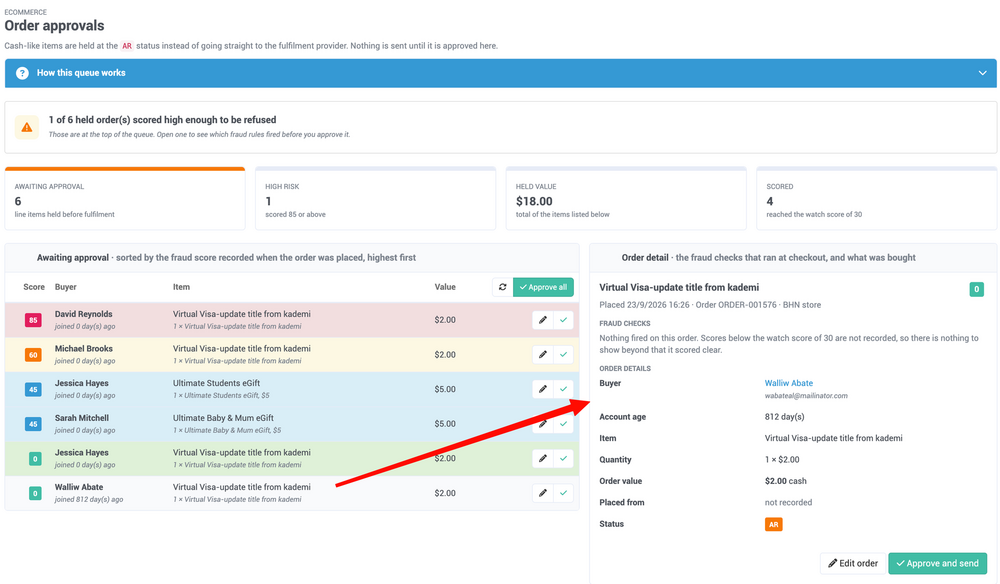
Alongside the checks, the reviewer gets everything needed to make the call: who placed the order, how old their account is, what they bought, the order value and the IP address it came from. Edit order opens the full order for a closer look.
Approving takes one click: use the tick on the order's row, or Approve and send in the detail panel. To clear the whole queue at once, use Approve all and confirm. Each order is approved independently, so if Blackhawk rejects one, the rest still go through.
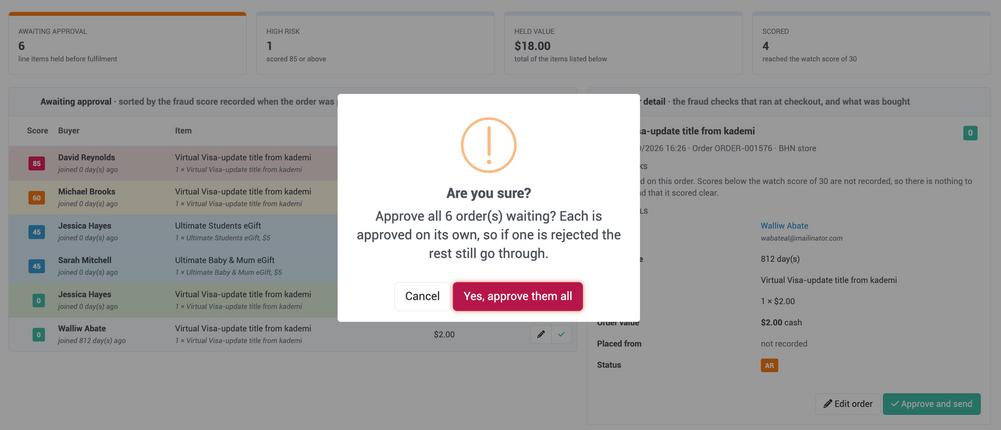
Approve all asks for confirmation, then approves each order on its own.
Why it matters
Catch it while it's still freeA card stopped at the queue costs nothing. A card caught after it's issued is money already gone. The review happens at the only point where saying no is free. |
Review from the top downBecause the queue is ranked by risk, reviewers start with the orders that need attention and can move quickly once the scores go quiet. |
Good orders keep movingApprove all clears a day's legitimate orders in one action, so the safeguard doesn't become a delay for everyone else. |
Built on what you already haveNo new fraud rules, integrations or tools. If you run Blackhawk and Kademi's fraud prevention, you switch on one setting. |
Approval is a deliberate permissionA dedicated Order Approver role controls who can see and release held orders, so signing off on cash-like value isn't just a side effect of being an administrator. |
The reasoning is kept on recordThe score and the checks behind it are captured at the moment of purchase, so a decision made the next morning is based on what was true at 3am. |
Getting started
Order approvals is optional and off by default. Here's what you need to know to switch it on.
| Find it in | Ecommerce › Order approvals |
| Turn it on | Blackhawk Marketplace settings › Send product order when › Order approved |
| Who can approve | Users with the OrderApprover role, plus Product Managers and Administrators |
| Applies to | Products fulfilled by Blackhawk |
| Requires | Kademi Fraud Prevention, for the scores and the reasons behind them |
|
Record from 30, refuse from 85, both adjustable |
| App versions | Blackhawk Marketplace 0.8.4or later, KProducts 1.6.3 or later |
Order approvals puts a person between a purchase and the card, and gives that person the information to decide quickly.