The Dynamics Theming app provides a solution for changing style of a website’s style based on predefined conditions or user configurations. To start using this app, install and enable KDynamicTheming from the marketplace on the website where you want to apply it. There are two types of dynamic theming: Organisation-Based Themes and Request-Based Themes. The details and usage of each type are explained in the two sections below.
Dynamic Theming
Organisation-Based Themes
This type of dynamic theming allows administrators to predefine a set of style variables for each organisation. When a user in the configured organisation accesses the website, they will see the website styled according to that organisation’s settings.
Example: Administrators set the button color for Organisation A to red and for Organisation B to blue. Users in Organisation A will see red buttons when they log in, while users in Organisation B will see blue buttons.
To enable this type of theme, follow the steps below:
- Create an organisation type called
client. - Add custom fields to your organisation type for each parameter required, such as
brand-primary. - Create an organisation for each themed client, tag it with
clientand configure its parameters accordingly. - A developer will need to update your website to ensure it supports dynamic parameters.
- install an app that is compatible with dynamic theming, such as
KReferrals. - When a user opens a page from a compatible app, the app will automatically identify the client and apply the corresponding theme parameters.
Request-Based Themes
However, we could think about a case where each user wants to have their own style instead of sharing a common style with their team. In this case, we introduce a way where, when a user (including anonymous users) accesses the website with request parameters, those parameters are used to define the theme for them. This explains why this type is called Request-Based Themes.
To enable this type of theme, follow the steps below:
1. Find Request-Based Themes in the main menu under the Dynamic Theming section.

2. Add predefined parameters, each represented as a row containing two fields:
Name: the name of the parameters. If users access the website with a request parameter exactly match this name, it will be used to create their theme configuration.-
Type: Defines how the parameters will be applied to the website theme. More details will be provided below. It has two options:Style: A corresponding style variable (LESS and CSS variable) will be added to the website. You can use this to override the existing theme style or create your own.Content: A corresponding KCode will be built and will return the parameter’s value. The KCode with the corresponding name can be found in therequestBasedThemeFieldssection.
3. You need to click Save each time you change the configuration here.
4. Create a link to access the website with configuration parameters following this structure: [website domain name]?[parameter-name-1]=[parameter-value-1]&[parameter-name-2]=[parameter-value-2]
5. Access the website using the parameters above, and you will see the values applied to the site:
- For
Content-typeparameters, the corresponding KCode fields can be found inrequestBasedThemeFields, using the same name as the field parameter in this format:Field [parametername](see the example below). -
For
Style-type parameters, a developer will be alble to use a pair of variables for each parameter (see the example below):- A LESS variable in this format:
@[parameter name]: [parameter value] - A CSS variable in the
:rootin this format:--[parameter name]: [parameter value]
- A LESS variable in this format:
6. The setting is based on the kdmt cookie, which is used to determine each user’s access ID. This means that every user who accesses the website, including anonymous users, will have their own kdmt value. If a user deletes their cookies, their configured parameters will be lost and must be generated again. If they do not clear the cookie, the configuration will remain the same each time they access the website, even if the parameters are not included in the URL.
7. Users can override the existing settings at any time by accessing the website with the parameter names and their new values.
Example:
1. The administrator configured two parameters in Step 2: [game-title] is Content-type and [brand-primary] is Style-type.
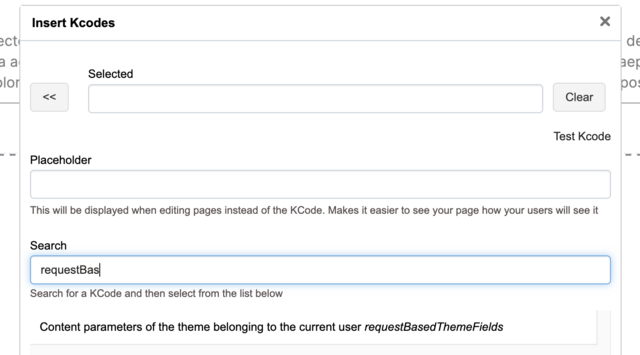
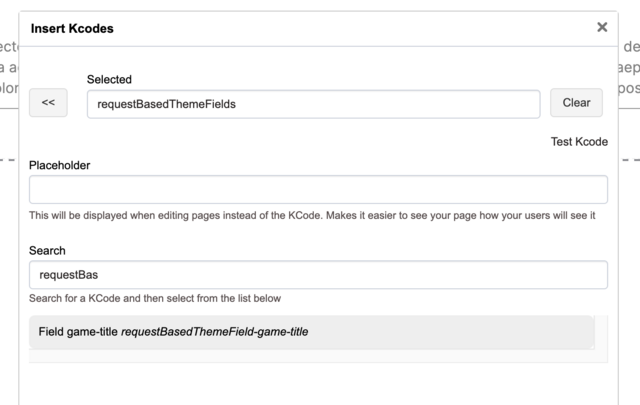
2. The administrator goes to the website editor, where they will find a KCode named Field game-title in requestBasedThemeFields, and add it to the page. They can then change the background color of the container to Panel primary.
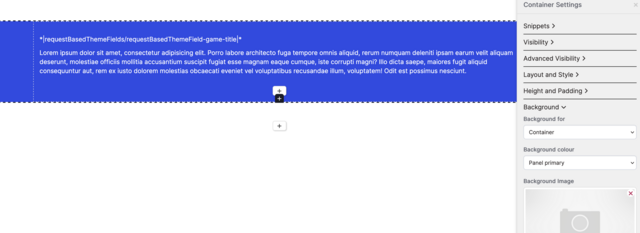
3. After that, this is how the page will appear to any user who does not have their own configuration.
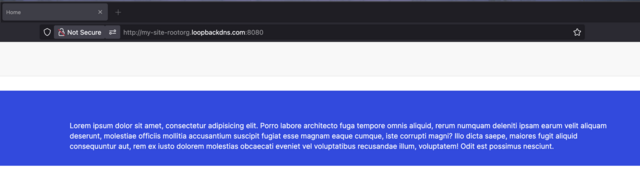
4. Create this link and access the website using it: kademi-site.com/?game-title=My%20game&brand-primary=red. Don’t forget to replace kademi-site.com with your own website domain. You will then see the configuration applied to the website.
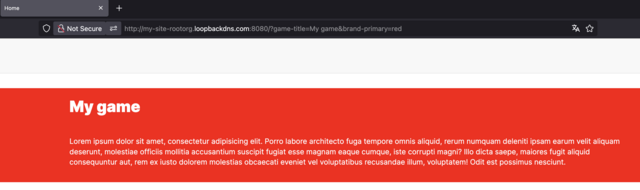
5. A developer can see and use CSS variable in their own code. Note that the LESS variable will not be displayed here, as it is a dynamic variable. However, you can still use it in the .less file by following the naming instructions provided above.

© 2025 Kademi Ltd