Pull values from a second, related index query into your results table and CSV export. For example, show each organisation's count or average score for active module statuses, with no custom query table.
A common reporting need is a table that lists records and also shows a number calculated from another set of records. Say you want a list of organisations, with the number of active module statuses each one has for a certain module, or the average score of those module statuses.
Until now, that took a custom query table that ran two queries and merged the results with code. You can now build it directly on the index query page by adding a related query.
This guide walks through that example from start to finish: preparing the query you want to join, adding the relation, and adding its values as columns.
How related queries work
A related query setup has three parts:
- The primary query is the index query whose results table you're building. In this example, it's a query on organisations.
- The joined query is a second index query that holds the numbers you want to bring in. In this example, it’s a query on module statuses, filtered to the non-expired ones for a certain module.
- The relation is how the two indexes connect. Here, each module status record has an Organisations field that links it to an organisation.
The joined query supplies its values through its aggregations. Only an aggregation grouped by the relation field can be used, because it gives exactly one value per row of the primary query. Each organisation gets its own count, and any sub-aggregations become extra columns you can add.
The joined query also keeps its own filters. Those filters decide which records are counted, so they're set on the joined query, not on the primary one.
Before you start
- Update your apps. Related queries need reporting-lib 6.3.1 and KReporting 5.4.1 or later. If you don't see the options described below, check your app versions before anything else.
- Use an editable primary query. Read-only system queries can't have relations. To build on one, use Save as new to create your own copy, then add the relation to that copy.
- Know which records you want to count. You'll set this up on the joined query in Step 1, through its filters and aggregations.
Step 1: Prepare the query you want to join
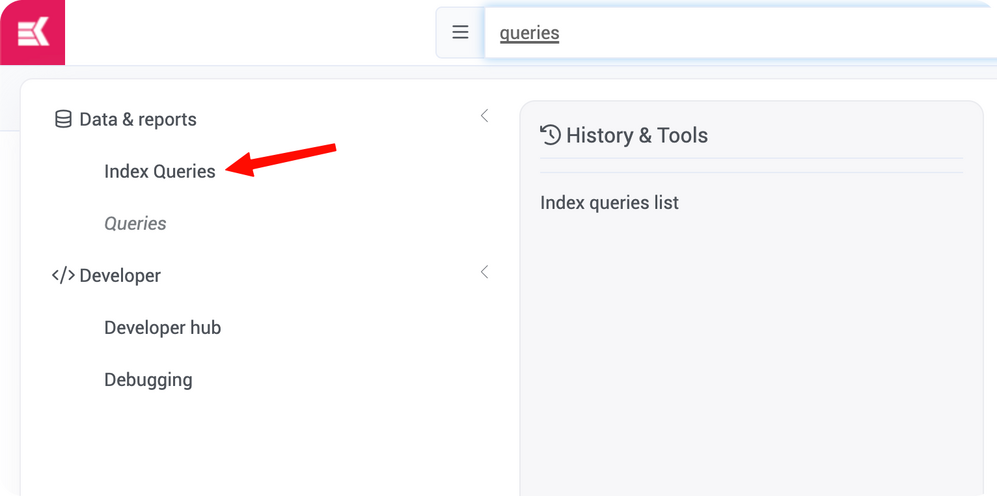
Start with the joined query: here, an index query on module statuses. To find it, open the menu and go to Data & reports → Index Queries, then open the query from the Index queries list.
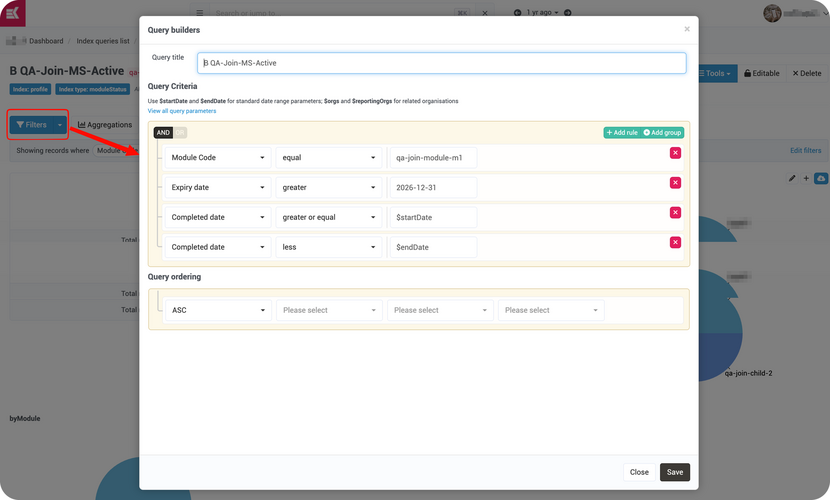
Set the filters. Click Filters to open the Query builders window. Under Query Criteria, use + Add rule to add each condition that limits the query to the records you want counted. In this example, there are two rules: Module Code equal to the module's code, and Expiry date greater than a set date, so only module statuses that expire after that date are counted.
Optional: follow the report's date range. A joined query doesn't follow the primary report's date range on its own. If you want the related column to count only records inside that range, add rules that use $startDate and $endDate, the standard date range parameters noted at the top of Query Criteria. In this example, that's Completed date greater or equal $startDate and Completed date less $endDate.
Click Save when your rules are in place.
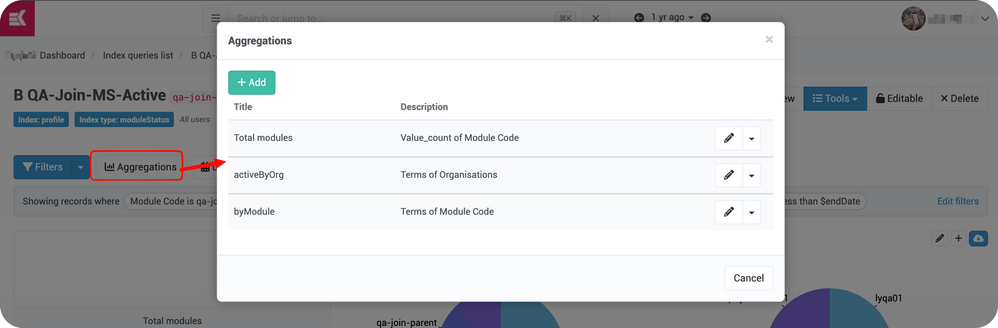
Add an aggregation grouped by the relation field.
- Click Aggregations, then + Add.
- Give the aggregation a clear title, such as activeByOrg.
- In Field, select Organisations.
- In Aggregation type, select terms.
- Optional: under Sub aggregations, click + Add to bring in an extra value for each organisation. For example, a sub-aggregation titled avgScore on the Score Perc field, with type avg.
- Click Save changes.
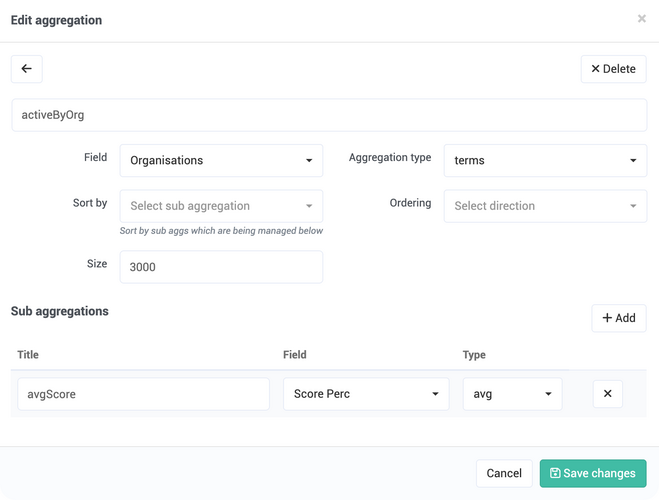
The terms aggregation supplies a Count column for each organisation, and each sub-aggregation supplies one more column.
Step 2: Open the primary query's columns
Go to Data & reports → Index Queries and open your organisations query. In the records panel, click Columns, then + Add more fields.
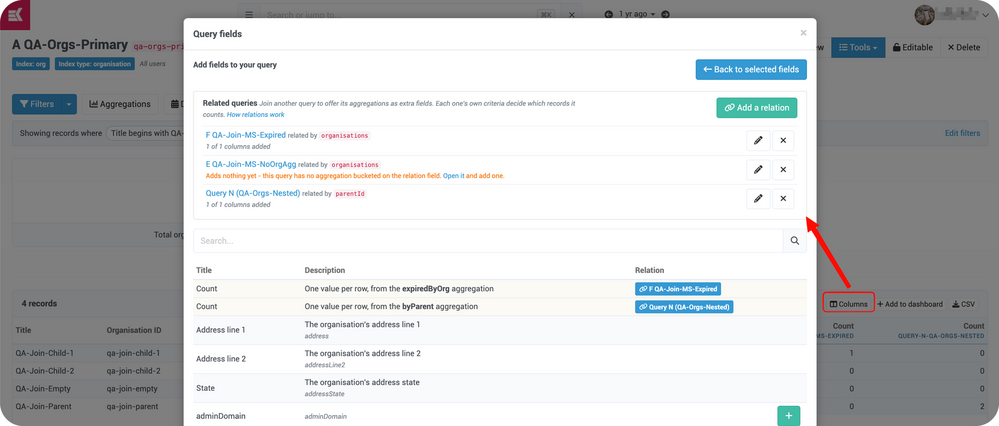
Columns opens the Query fields window at Arrange and remove fields. + Add more fields switches it to Add fields to your query, with the Related queries strip at the top. Any relations the query already has are listed in the strip, with how many of their columns you've added.
Step 3: Add the related query
- In the Related queries strip, click Add a relation.
- In Query to join, search for and select your module status query.
- Check How they relate. If the two queries connect in only one way, the relation is selected for you. Here, it's All Organisations, which links the module status's
organisationsfield to the organisation'sentityId. - Click OK.
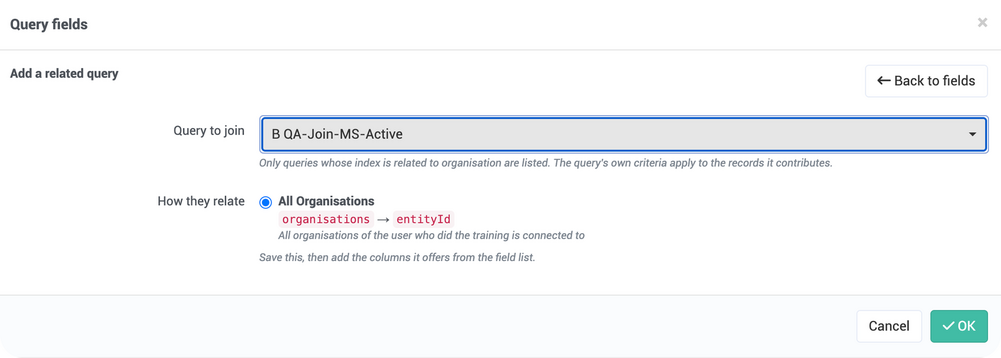
Query to join only lists queries whose index is related to your primary query's index. It also won't list a query that's already joined by its only relation, so you can't add the same relation twice, or a query that has related queries of its own.
Step 4: Add the related columns
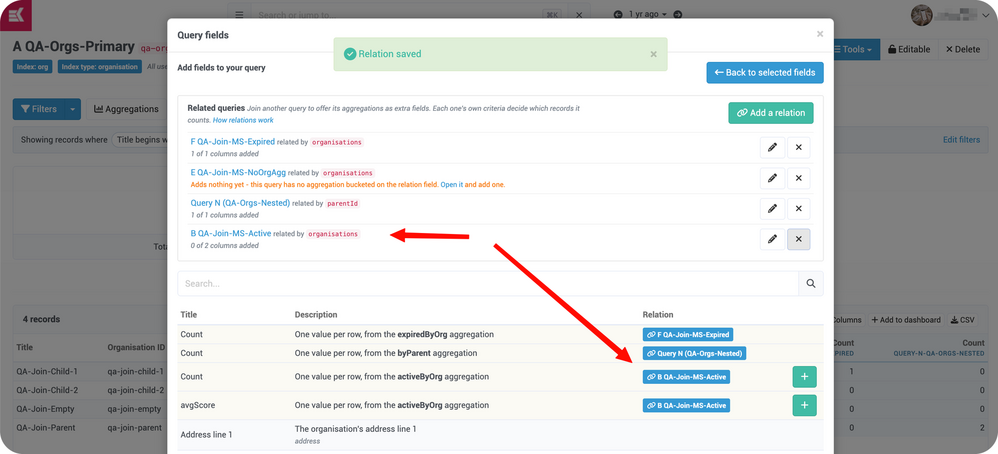
After you click OK, you'll see Relation saved, and the new relation appears in the Related queries strip. Here, it shows 0 of 2 columns added.
The relation's columns now appear in the field list, with the source query shown under Relation. In this example, that's Count and avgScore, both from the activeByOrg aggregation. Click the green + next to each one you want, the same way you add any other field. This example adds avgScore.
Step 5: Set a title and format
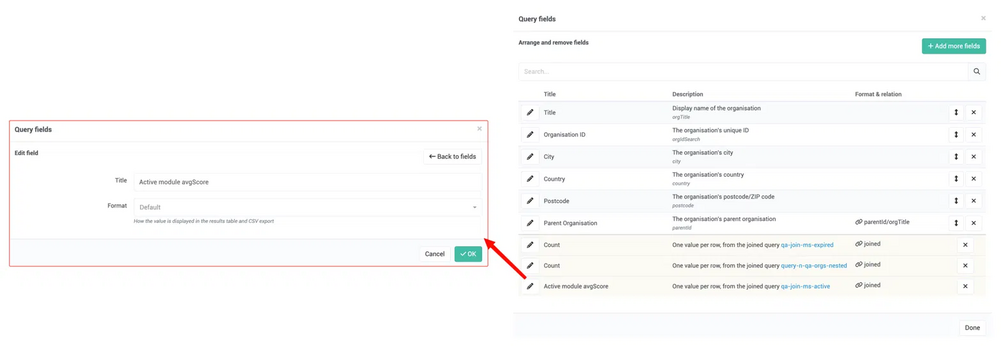
Added columns appear in the Arrange and remove fields list, marked joined under Format & relation. Click the pencil next to a related column to open Edit field, set its Title and Format, then click OK. In this example, avgScore is renamed Active module avgScore, and Format stays at Default. Click Done when you're finished.
Step 6: Check the result
The related column appears at the end of the results table, after your other columns. It's shaded and labelled with the source query under the column title. Here, Active module avgScore shows QA-JOIN-MS-ACTIVE under its title. It's also included when you export with CSV.
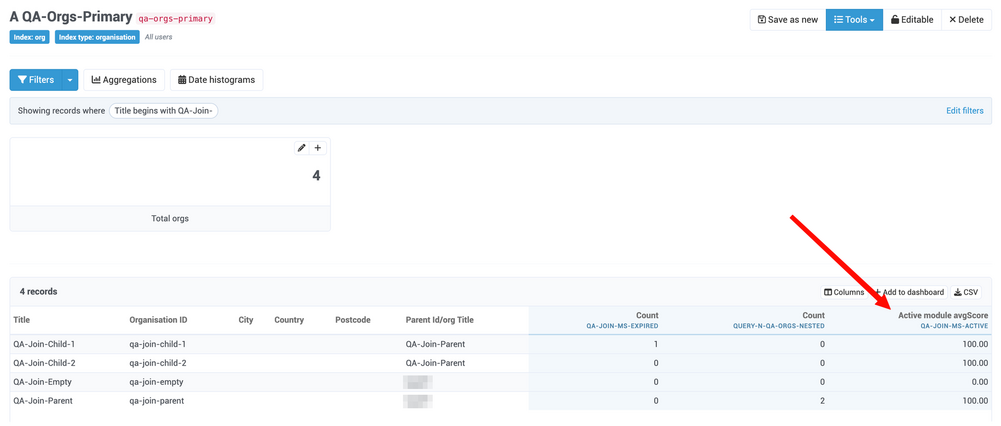
If a column shows 0 where you expected a value, check the joined query's filters first, including any date range filters.
Managing related columns
A related column works like any other column once it's added. Changes to its title, format or selection update the results table straight away, with no page reload.
- Remove one column: click ✕ next to it in Arrange and remove fields. It goes back to the add list, so you can add it again later.
- Remove the whole relation: click ✕ next to the relation in the Related queries strip. All of its columns are removed with it.
- Edit a relation: click the pencil next to the relation in the Related queries strip, change it, and save it.
If the joined query adds nothing yet. A joined query only offers columns from aggregations grouped by the relation field. If it has none, the relation still saves, but the strip shows Adds nothing yet under it, with an Open it link to that query so you can add the aggregation from Step 1.
What to expect
- Filters belong to the joined query. A related column counts only records that pass the joined query's own filters. It follows the report's date range only if those filters use $startDate and $endDate (see Step 1). If no records pass the filters, the column shows 0.
- Different filters need separate joined queries. Filters are set per query, so one joined query can't give you, for example, active and expired counts side by side. Create one query for each set of filters, and add each as its own relation.
- Related columns can't be sorted. Their values are worked out for the rows on the current page after the page is chosen. Sorting by them would only reorder that one page, so clicking their headers does nothing.
- They always appear last and look different. Related columns sit after your other columns and are shaded, so you can tell them apart. This is by design.
- Access is respected. Access to the joined query is checked each time the report runs, not only when the relation was added. If you don't have access to the joined query, you won't see its values.
- One level of joining. A query that has related queries of its own can't be used as a joined query.
Wrapping up
Related queries let one index query show both record details and numbers from another index, in the same table and the same CSV export. Prepare the joined query with the filters and grouped aggregation you need, add it as a relation, then pick the columns you want to show.
If you'd like help setting up related queries for your own reports, get in touch with our team.