Set up one-click referral sharing for your participants and a personalized landing page for the people they invite.
A referral program works best when both sides find it easy. Your participants need a quick way to pass their link on. The people they invite need a clear reason to accept, without a long form standing in the way.
The latest KReferral update covers both. Participants can now share their referral link to their favorite apps in one click, or with a QR code. Invited friends land on a page that tells them who invited them and what they'll get. Admins also get redesigned referral program pages, with results at a glance and a built-in way to test a program.
This guide walks you through setting up both.
What's new in the KReferral referral experience
The update changes two parts of the referral workflow, plus the admin pages you use to manage it.
The referral share component. This is the Referrer Multi Function component (referrerMultiFunction), which your participants use to refer others. It now includes:
- One-click share buttons for WhatsApp, Facebook, X, LinkedIn, Email and SMS
- A QR code for in-person sharing
- The incentive stated in plain language, next to the refer buttons
The referee landing page. This is the page an invited person sees when they open a referral link. It now includes:
- The referrer's name and the program name
- What both sides will receive
- A shorter sign-up form
The referral program admin pages. Admins get a redesigned program list, an Overview tab with results, a sectioned Details tab and a new Test referrals tab. These are covered at the end of this guide.
A quick note on roles:
- Setting up the components is done by an admin, or someone with website editing access.
- Sharing a referral link is done by your participants, on the referral page of your website. Participants don't need to be logged in, so visitors to a consumer site can refer friends without registering first.
- Accepting an invitation is done by the referee, on the landing page.
Setting up the referral share component
Before you start
Make sure you have:
- A referral program already set up. The steps in this guide apply to an existing referral program.
- Up-to-date apps. The features in this guide need KReferral 3.6.1 or later. See Managing app updates in Kademi: account vs website level for how to update.
Step 1 — Open the referral page template
The share component lives on the referralMainPage template. This is the page participants see when they click your "Refer a friend" menu item. The component is already on this template, so you only need to configure it.
To open the template:
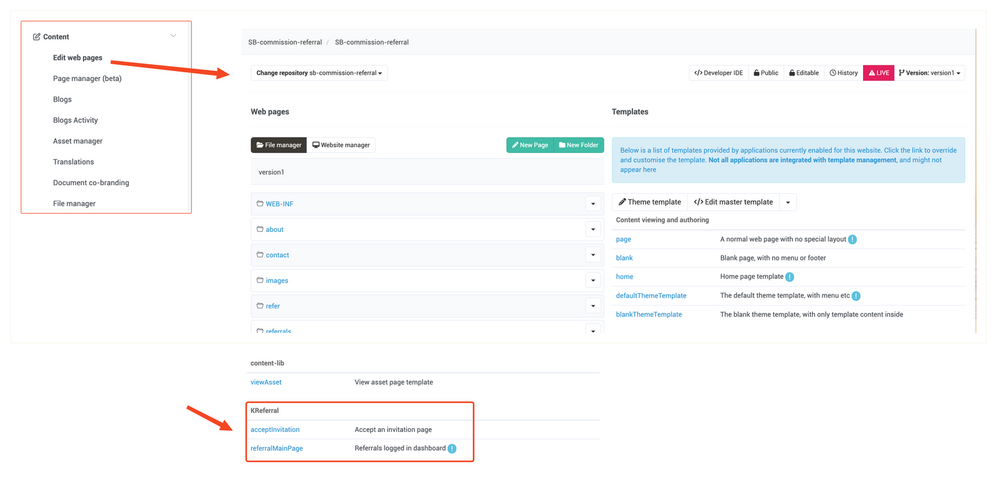
- In the admin menu, go to Content > Edit web pages.
- Select the website you want to edit.
- Under Templates, scroll to the KReferral section and click referralMainPage. The template opens in the editor.
Step 2 — Open the component settings
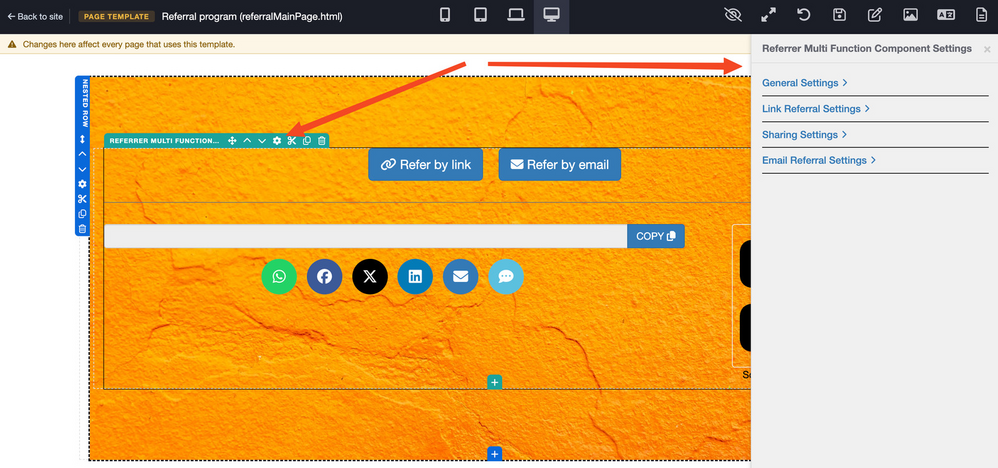
Select the Referrer Multi Function component on the page, then click the gear icon on its toolbar to open Referrer Multi Function Component Settings.
 Step 3 — Configure how participants can refer
The settings panel opens on General Settings, with three expandable sections below it: Link Referral Settings, Sharing Settings and Email Referral Settings. Configure the following options.
Show button. In General Settings, choose Both, Link button or Email button. The settings panel only shows the sections and fields that apply to the option you choose, including the button labels.
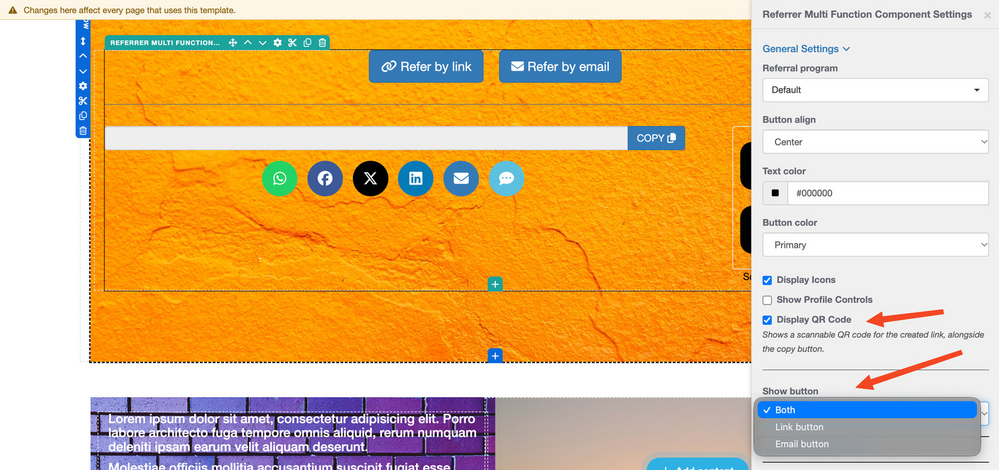
Display QR Code. Also in General Settings. When this is on, a scannable QR code appears next to the referral link. It is on by default.
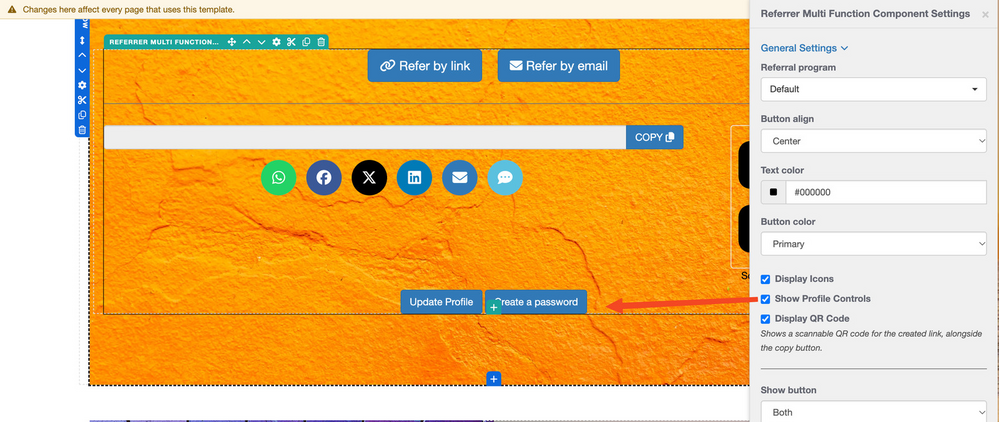
Show Profile Controls. Also in General Settings. When this is on, Update Profile and Create a password buttons appear below the referral section. It is off by default.
Link Referral Settings. If you chose Both or Link button, expand Link Referral Settings to set the button labels:
- Link Referral Button Text: the label on the button participants click to create their referral link, for example "Refer by link".
- Profile Button Text: the label on the profile button shown by Show Profile Controls, for example "Update Profile".
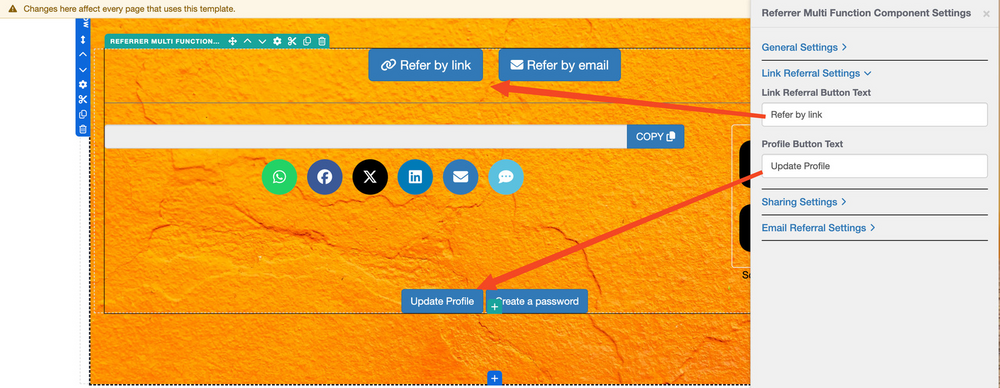
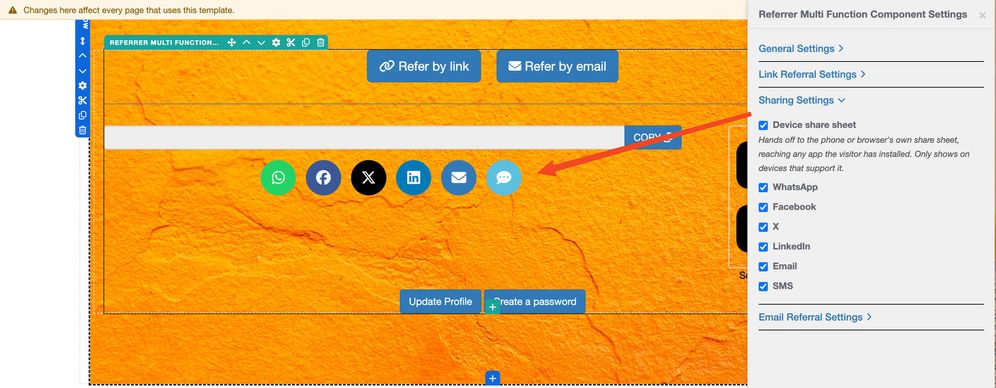
Sharing Settings. Expand Sharing Settings to choose how participants can share their link:
- Device share sheet: when ticked, participants on devices that support it, such as most phones, get a button that opens the device's own share sheet, so they can share to any app they have installed. The button doesn't appear on devices without a share sheet.
- Share channels: tick the channels you want participants to see: WhatsApp, Facebook, X, LinkedIn, Email and SMS. By default, all channels are shown. If you untick every channel, the channel buttons don't appear at all.
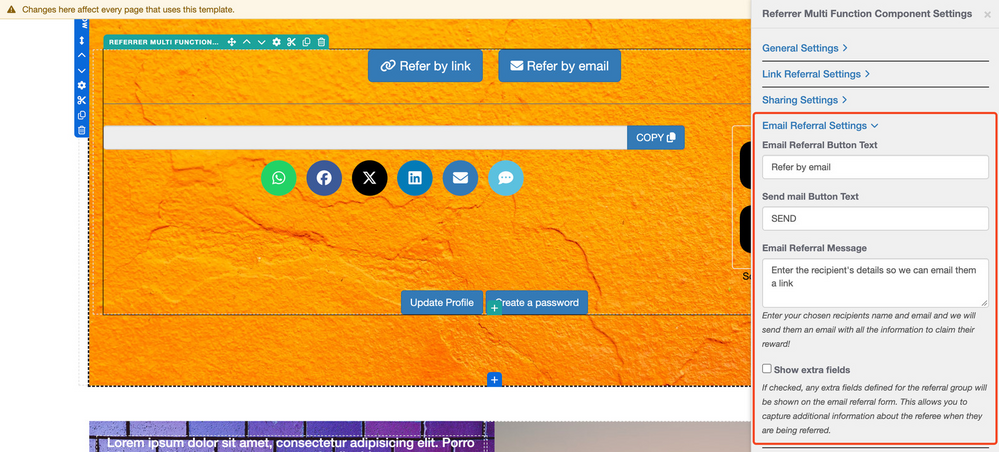
Email Referral Settings. If you chose Both or Email button, expand Email Referral Settings to set up the email referral form:
- Email Referral Button Text: the label on the button participants click to refer by email, for example "Refer by email".
- Send mail Button Text: the label on the button that sends the email, for example "SEND".
- Email Referral Message: the text shown to participants on the email referral form, for example "Enter the recipient's details so we can email them a link".
- Show extra fields: when checked, any extra fields defined for the referral group appear on the email referral form. This lets you capture additional information about the referee when they are being referred.
Note: Referring by email relies on an automation that sends the referral email. See the Sending a referral email training module for how to set this up.
Step 4 — Save and publish
Save the settings, then publish the page.
How participants share their referral link
When a participant opens the referral page, they choose how to refer. Selecting one option greys out the other.
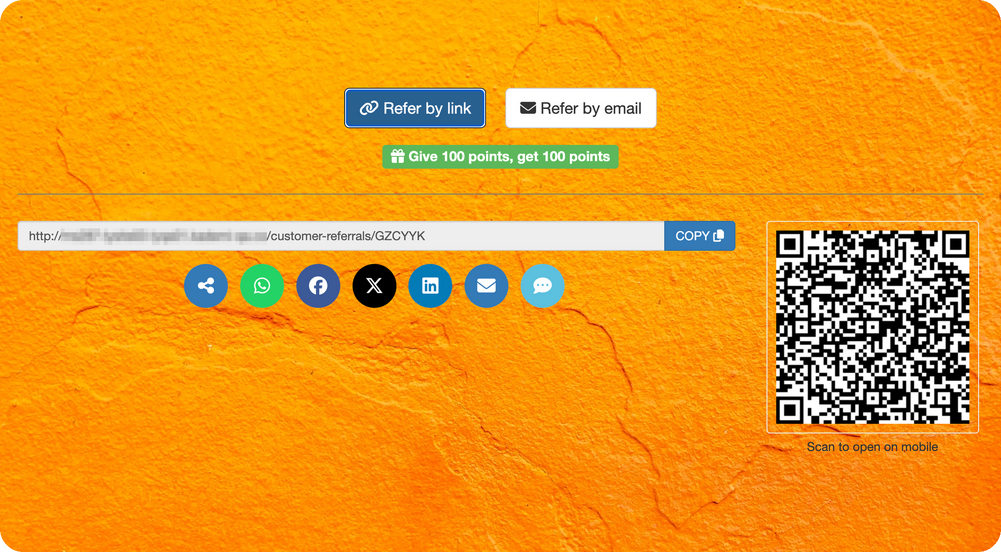
If the program awards points, an incentive line appears next to the refer buttons, for example: "Give 100 points, get 100 points." The numbers come from your program's incentive settings. For non-points incentives, such as vouchers, no incentive line is shown.
When the participant clicks Refer by link, their link is created straight away. There is no separate "Create Link" step. The section then shows:
- The referral link, with a copy button
- The QR code, captioned "Scan to open on mobile"
- The share buttons for each enabled channel
Sharing to each channel
Each share button opens the matching app with the participant's referral link ready to send. The participant only needs to choose who to send it to, or where to post it.
Depending on the app, the share includes a short message, a preview of the invitation page, or both.
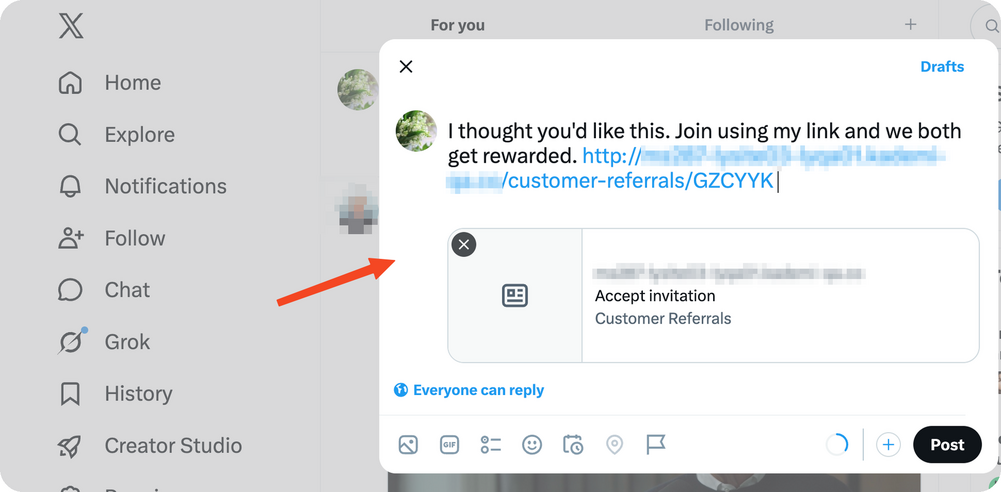
The share message is set by the platform and can't be changed.
Sharing from a mobile device
If Device share sheet is ticked in Sharing Settings, an extra button appears on devices that support it, such as most phones. It opens the device's own share sheet, so participants can share to any app they have installed. On desktop, this button doesn't appear, and participants use the channel buttons instead.
Setting up the referee landing page
What referees see
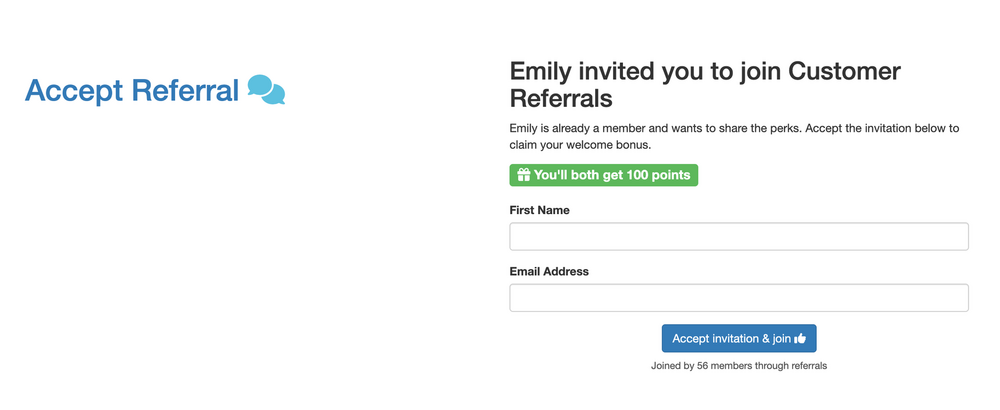
When someone opens a referral link, they land on an invitation page that is personalized automatically. It includes:
- A heading and welcome message that name the person who invited them and your program, for example: "referrer01 invited you to join Customer Referrals"
- An incentive callout below the welcome message, stating what both sides will receive, for example: "You'll both get 100 points". If the referrer and the referee get different incentives, the callout states each side's incentive separately.
- A short form asking for First Name and Email Address
- An "Accept invitation & join" button
- A social proof line under the button, showing how many people have already joined the program through referrals, for example: "Joined by 55 members through referrals". This line is hidden until the program has at least one accepted referral.
If your program redirects referees after they accept, that works the same as before.
Step 1 — Open the landing page template
The landing page uses the acceptInvitation template. To open it:
- In the admin menu, go to Content > Edit web pages.
- Select the website you want to edit.
- Under Templates, scroll to the KReferral section and click acceptInvitation. The template opens in the editor.
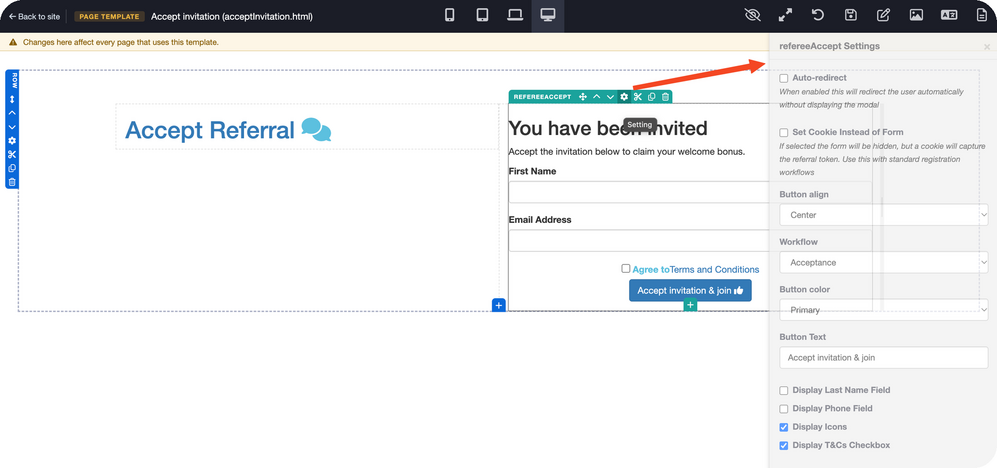
- Select the refereeAccept component on the page.
Step 2 — Customize the accept button and terms
The heading and welcome message on the invitation page are created automatically from the referral, using the referrer's name and the program name. They can't be edited on the acceptInvitation template.
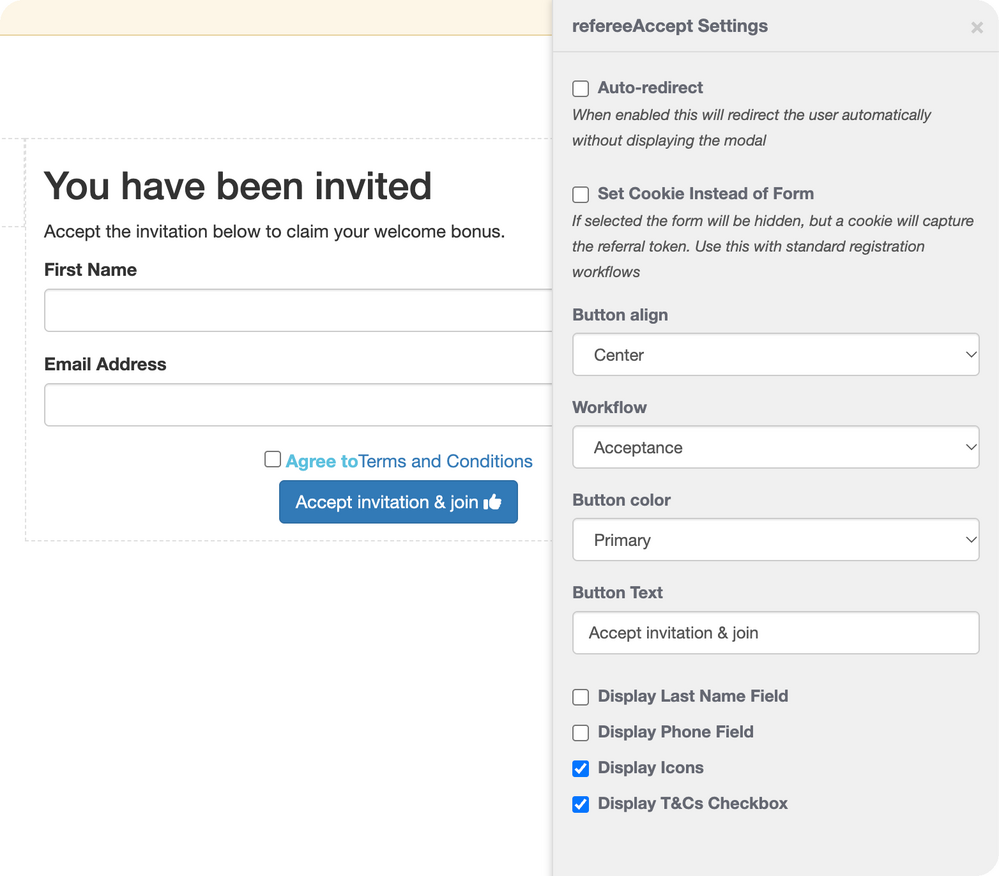
In the refereeAccept Settings panel, you can change:
- Button Text: the label on the accept button. The default is "Accept invitation & join".
- Button color and Button align: how the accept button looks and where it sits.
- Display T&Cs Checkbox: when checked, referees must tick a terms and conditions checkbox before accepting.
Step 3 — Choose which details to collect
The form collects First Name and Email Address by default. To also collect a referee's last name or phone number:
- In the refereeAccept Settings panel, turn on Display Last Name Field, Display Phone Field, or both.
- Save the settings, then publish the page.
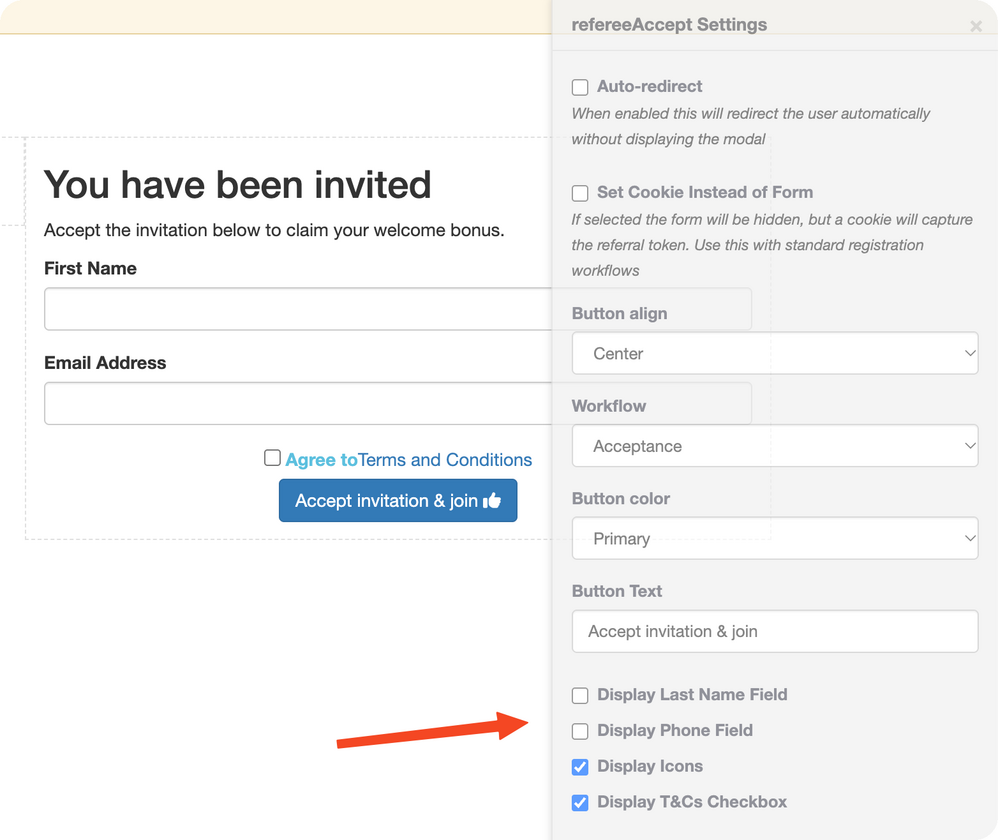
Note: To send referees through your standard registration instead of the accept form, select Set Cookie Instead of Form. This hides the form and accept button, and saves the referral code in a browser cookie when the page loads. The heading, welcome message and incentive callout still show. Add your own content, such as a link to your registration page, to guide referees onward. When they register, KReferral detects the cookie, records the referral as accepted, and your program's normal activation process follows. To show the accept form instead, leave this option unselected.
Important for existing sites: From KReferral 3.6.1, the form shows only First Name and Email Address by default. Previously it also showed Last Name and Phone Number. If your site uses the standard referee accept component and you still need those details, turn the two settings above back on after updating.
What's new on the referral program admin pages
The pages admins use to manage referral programs have also been redesigned, so it's easier to see how a program is doing and to check that it works before launch.
Referral programs list
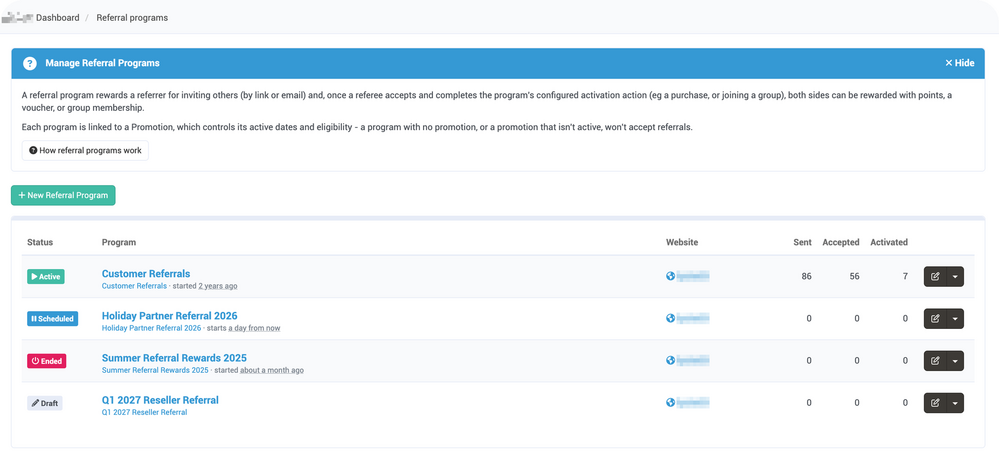
The Referral programs list now shows each program's status (Active, Scheduled, Ended or Draft), the website it's linked to, and how many referrals have been sent, accepted and activated. An intro panel at the top explains how referral programs work, including how each program is linked to a promotion that controls its active dates and eligibility.
Overview tab
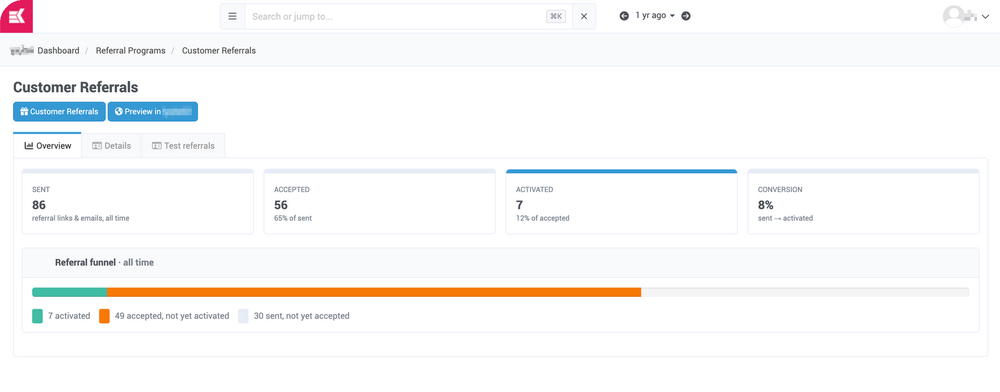
Open a program to see its new Overview tab. It shows the number of referrals sent, accepted and activated, with a funnel showing how many move from one stage to the next. The numbers come from the program's actual referral records.
The breadcrumb at the top of the page now includes the program's name, so you always know which program you're editing.
Details tab
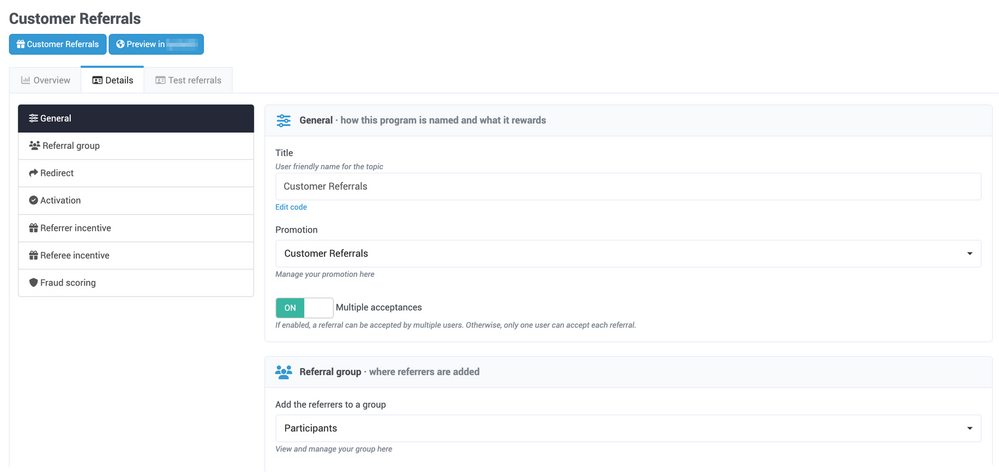
The Details tab is now split into sections: General, Referral group, Redirect, Activation, Referrer incentive, Referee incentive and Fraud scoring. A rail on the left highlights the section you're viewing, and clicking a section in the rail scrolls straight to it.
The activation method, referrer incentive and referee incentive are now chosen from option cards. Each card has a short description, and its settings appear inline when you select it.
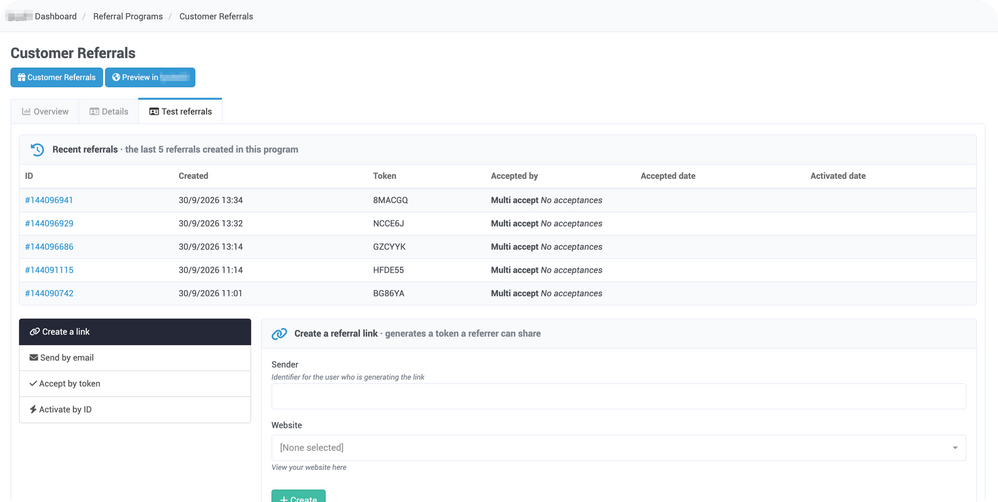
Test referrals tab
Use the new Test referrals tab to try out a program before your participants do. From this tab you can:
- Create a referral link
- Send a referral by email
- Accept a referral by token
- Activate a referral by ID
A Recent referrals panel beside the actions refreshes after each one, so you can see the result straight away.
Why this matters
- Fewer barriers to accepting. Asking for personal details such as a phone number on a first visit can make invited people hesitate. A shorter form keeps the focus on joining.
- Sharing where people already are. Participants can send their link straight to the apps they use, or show a QR code in person, without copying and pasting.
- A clear reason to join. Referees see who invited them and what they'll receive before they fill anything in.
Ready to make referrals easier to share?
If you already run a referral program in Kademi, update your apps, then check the settings on your referral and landing page templates. Your participants will have everything they need to start sharing.
New to KReferral? Start with the Referral programs training module to set up your first program.
Get in touch with our team if you'd like a walkthrough for your specific use case.