A password policy is a set of rules a password has to satisfy before Kademi will accept it — a minimum length, at least one uppercase letter, a list of words that must not appear, and so on. Policies are enforced whenever a password is set or changed: at registration, at a password reset, when an administrator sets a password on a profile, and on a users table upload.
The first thing to know is where the setting is not. It is not on the account edit page, it is not in Advanced Account Settings, and it is not a website setting. A password policy belongs to a group.
Groups are what Kademi already uses to describe who a user is — Participant, Sales Rep, Administrator. Attaching password rules to the group means the rules follow the role, so administrators can be held to a stricter standard than end users on the same account without any extra configuration.
Setting a policy
Step 1: Open Manage groups
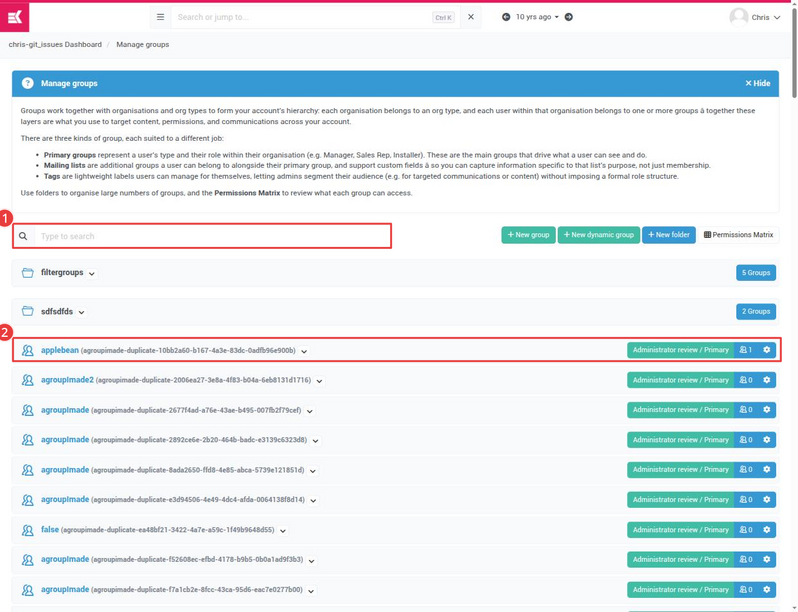
From the admin console, go to Manage groups — /groups/. Every group on the account is listed here, each with a badge showing its registration mode and kind.
Find the group you want to govern. The search box filters the list, which is worth using on accounts with a lot of groups.
Step 2: Find the password policy panel
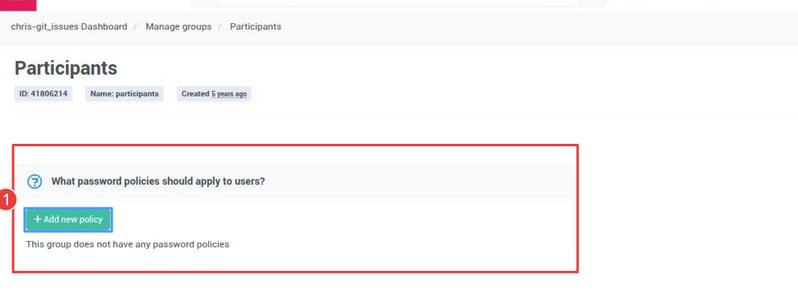
On the group page, scroll to the panel headed What password policies should apply to users? It sits in the left column, below the extra fields panel. A group with no rules yet reads “This group does not have any password policies”.
The panel appears on primary groups and mailing lists. It is deliberately hidden on tags and opt-in groups — those describe interests, not identity, so they do not govern how a user signs in.
Step 3: Fill in the policy
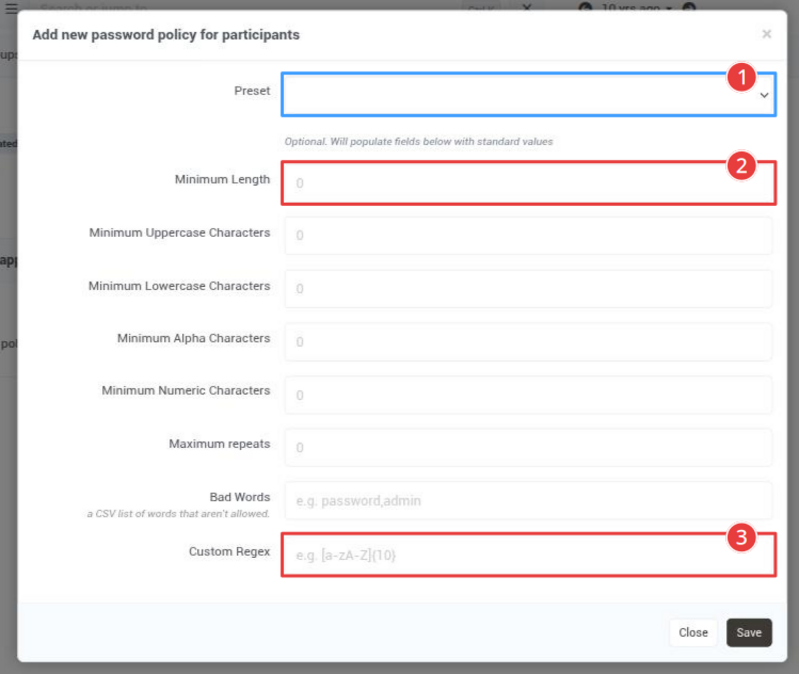
Add new policy opens a form with nine fields. Every one of them is optional: a field left blank, or set to 0, is ignored entirely. A policy is only as strict as the fields you actually fill in.
Start with a Preset if one is close to what you want — it populates the fields below with standard values, which you can then edit. The preset itself is not saved; only the resulting field values are.
Save writes the policy and it takes effect on the next password that is set.
 https://docs.kademi.co/blogs/docs-kb/password-policies/
What each field does
The labels are mostly self-explanatory, but three of them behave in ways the label does not tell you.
| Field | Effect |
|---|---|
| Preset | Fills in the fields below with a standard set of values. Client-side only — nothing about the preset is stored with the policy. |
| Minimum Length | Total number of characters. |
| Minimum Uppercase Characters | Count of uppercase letters anywhere in the password. |
| Minimum Lowercase Characters | Count of lowercase letters. |
| Minimum Alpha Characters | Count of letters of either case. Accented letters count. |
| Minimum Numeric Characters | Count of digits 0-9. |
| Maximum repeats | Rejects a run of this many identical characters in a row. Set it to 3 and aaa is rejected — so the longest run actually allowed is one less than the number you enter. |
| Bad Words | Comma-separated list. Case-insensitive substring match, so admin also rejects Administrator1. |
| Custom Regex | The password must match this pattern in full, not merely contain it. Anchor with .* at both ends to test for a substring. |
The three presets
All three presets are built around an eight-character minimum, which is below what most security teams now ask for. Treat them as a starting point rather than an answer.
-
Minimum 8 Characters
-
Minimum 8 Characters, Mixed case & 1 number
-
Minimum 8 Characters, Mixed case & 2 number & max 3 repeats
How policies combine
A profile is held to the policies of every group it belongs to on that account, and the password has to satisfy all of them. There is no “most specific wins” and no override — the rules stack.
Pending group membership applications count too. Someone who has applied to a group but is still awaiting approval is already being held to that group’s password policy.
In practice: put the baseline policy on the one group everybody is in, and add a second, stricter policy only to the groups that need it — administrators, for example. Copying the same policy onto ten groups gives you the same result and ten places to keep in step.
Special characters use the regex field
There is no “minimum special characters” box. When a policy calls for at least one symbol, that requirement goes in Custom Regex. Because the pattern has to match the whole password, wrap the character class in .* on both sides:
.*[!@#$%^&*()\-_=+\[\]{};:,.?/\\|~].*
Add or remove characters inside the brackets to match the symbol set you have been asked for. Keep \-, \[, \] and \\ escaped as shown.
What a password policy does not cover
Two requirements come up in almost every security review, and neither is part of this form.
Account lockout after failed logins
Locking an account after a number of failed attempts is a separate system: Intrusion Detection, under Website Manager at /manage-idp/. Rate limits, lockouts, IP blocking and alerting on suspicious activity are all configured there, not on the group.
Forcing existing users to update their password
A policy is checked when a password is set. Passwords that already exist are never re-tested, so tightening a policy does not invalidate anyone’s current password — existing users carry on signing in with what they have until they change it themselves.
A full requirement, line by line
A recent customer security review arrived with the list below. It is a good test of the form, because only half of it is a password policy at all — and one line of it cannot be done from the admin console.
| What was asked for | Where it is set | Value |
|---|---|---|
| Minimum length of 12 characters | Password policy | Minimum Length = 12 |
| At least one uppercase letter, A-Z | Password policy | Minimum Uppercase Characters = 1 |
| At least one lowercase letter, a-z | Password policy | Minimum Lowercase Characters = 1 |
| At least one number, 0-9 | Password policy | Minimum Numeric Characters = 1 |
| At least one special character from a named set | Password policy, Custom Regex | see below |
| Lock the account after 10 failed logins | Intrusion Detection | Login attempts count, compared against 10 |
| Temporary lockout for 30 minutes | Intrusion Detection | Temporarily block, Block for (minutes) = 30 |
| Monitor repeated failed authentication attempts | Intrusion Detection | Log the request |
| Generate security alerts for suspicious activity | Intrusion Detection | Notify administrators |
The password half
Four of the five password rules are ordinary fields. The fifth, the special character, has no field of its own and goes in Custom Regex. The customer supplied their own list of acceptable symbols — ! @ # $ % ^ & * ( ) - _ = + [ ] { } ; : , . ? / \ | ~ — so the character class is built from exactly that set:
.*[!@#$%^&*()\-_=+\[\]{};:,.?/\\|~].*
Entered as one policy, on the group the affected users belong to:
-
Minimum Length:
12 -
Minimum Uppercase Characters:
1 -
Minimum Lowercase Characters:
1 -
Minimum Numeric Characters:
1 -
Custom Regex:
.*[!@#$%^&*()\-_=+\[\]{};:,.?/\\|~].*
Leave Minimum Alpha, Maximum repeats and Bad Words blank — they were not asked for, and each one is another way for a legitimate password to be refused. Note that a request covering “our accounts and our admin sites” means every group whose members sign in, on every account in scope, not one policy in one place.
The lockout half
The remaining four lines are all Intrusion Detection, at /manage-idp/, and they assemble into one metric and one rule.
Check the scope first. IDP policies are scoped. The admin console has its own policy, and each website has its own, each with its own versions. The Change website selector at the top of the page picks the scope and the Version selector picks the branch — a draft version is editable, the live one is read only. A rule you are certain you configured will be invisible if you are looking at a different scope.
A rule condition can only compare a metric, so the counter has to exist before a rule can reference it. Metrics live on their own tab, and the Measures column spells out what each one counts.
Adding the metric
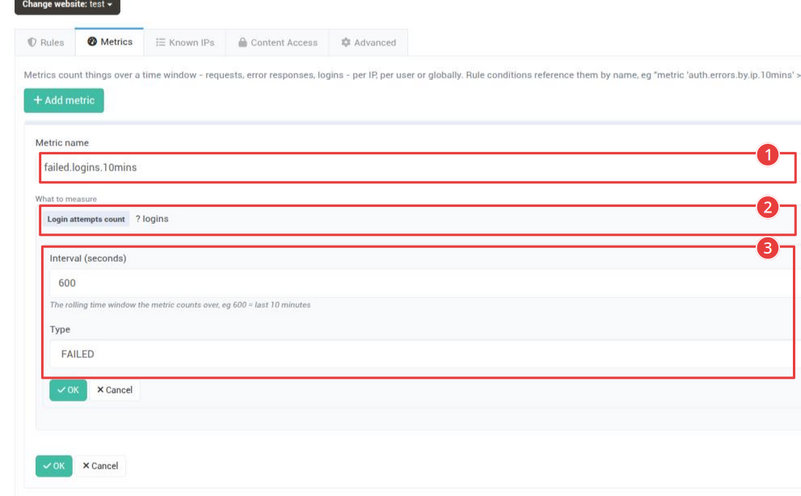
Add metric opens an editor inline on the page rather than in a dialog. It has two parts: a name, and the thing being measured.
- Give it a Metric name. This is the handle rules use to refer to it, so make it describe the measurement —
failed.logins.10minssays what it counts and over how long. - Under What to measure, press Set. A dropdown offers the metric types: Average response time, Count of response statuses, Fraud score, Login attempts count, Metric for matching requests, and Request count. Choose Login attempts count.
- Two fields appear. Interval (seconds) is the rolling window —
600for the last ten minutes. Type isFAILEDorSUCCESS; failed logins is what a lockout counts. - OK on the inner field editor, then OK on the panel. The outer OK refuses while the inner editor is still open.
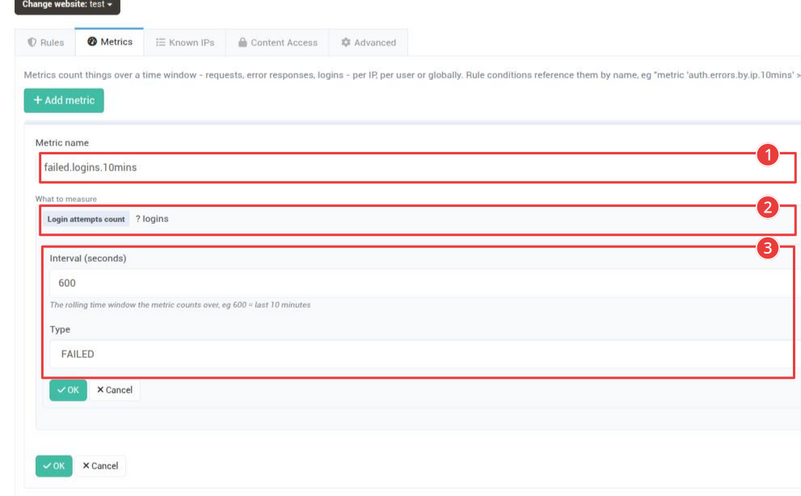
Per user, not per IP. Login attempts count tracks attempts per username, which is what account lockout means. The other counters that look similar — Count of response statuses tallying 403s and 400s, for instance — carry a “Count per” setting and are usually set to IP. Those throttle an attacking address, which is a different control: it does not lock the account under attack, and one shared office IP can trip it for everybody behind it.
Read the Measures column rather than the metric name. A metric called auth.errors.by.ip.10mins that reads “responses with status FORBIDDEN/BAD_REQUEST per ip over 600s” is a status counter, whatever its name suggests. A Login attempts count metric reads “failed logins over 600s”, with no “per” clause at all.
The rule that uses it
With the metric defined, the Rules tab can reference it by name. A single rule does the whole job.
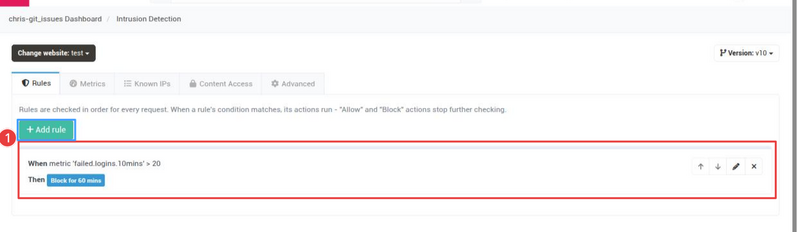
Add rule opens the rule editor. It is a tree rather than a form: a When condition and a Then list of actions, each node chosen from a picker. A threshold rule is a Compare values condition with Metric value on the left and Fixed value on the right.
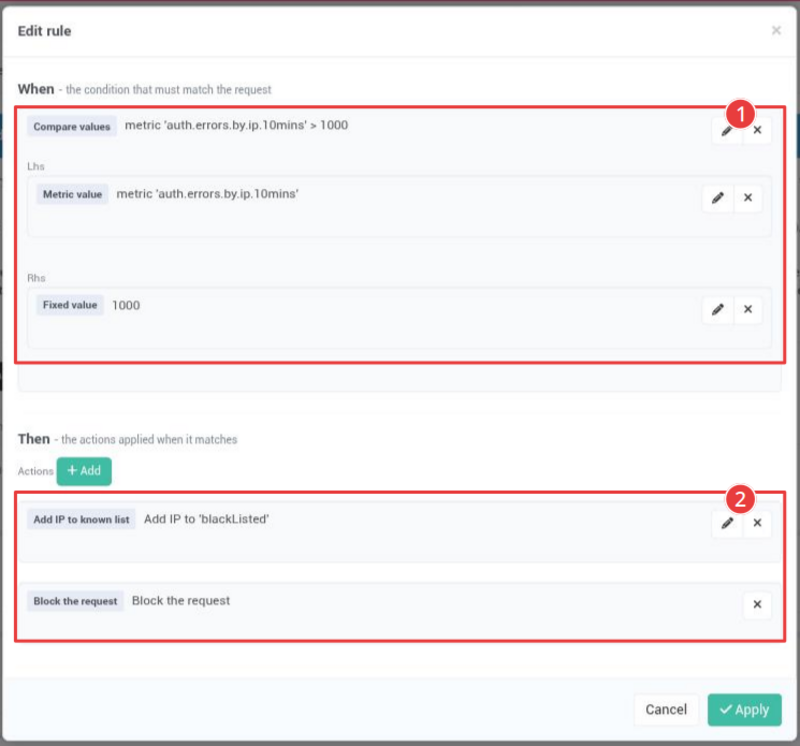
Note that Apply writes straight to the server. There is no separate save step, so treat the dialog as live.
Assembled for the requirement in hand — ten attempts, thirty minutes — the metric and rule read:
-
Metric name:
failed.logins.10mins -
What to measure: Login attempts count
-
— Interval (seconds):
600 -
— Type:
FAILED -
When — condition: Compare values, with Metric value on the left and Fixed value
10on the right -
Then — action: Temporarily block, Block for (minutes) =
30 -
Then — action: Notify administrators
-
Then — action: Log the request