Summary: Learners now see only the courses they're enrolled in. A new Role applicability setting lets you decide whether a course enrolment also unlocks the rest of the program (Lenient) or only that course (Strict).
When you enrol a learner group in a single course instead of a whole program, two questions matter: what does that learner see, and what can they actually open? KLearning now gives you control over both.
This guide explains what's changed for learners, how Strict and Lenient differ in practice, and how to set everything up.
What's changed for learners
Learners now see only the courses they're enrolled in. This applies to the program page and the courses list, in both Strict and Lenient mode.
- A learner enrolled in a single course sees just that course, not every course in the program.
- A learner enrolled in the whole program still sees every course.
For example, Alex Morgan belongs to the Sales Partners group, which is enrolled only in Know Your Product Series. The program Core Learning has three courses, but Alex's learning page lists only Know Your Product Series.
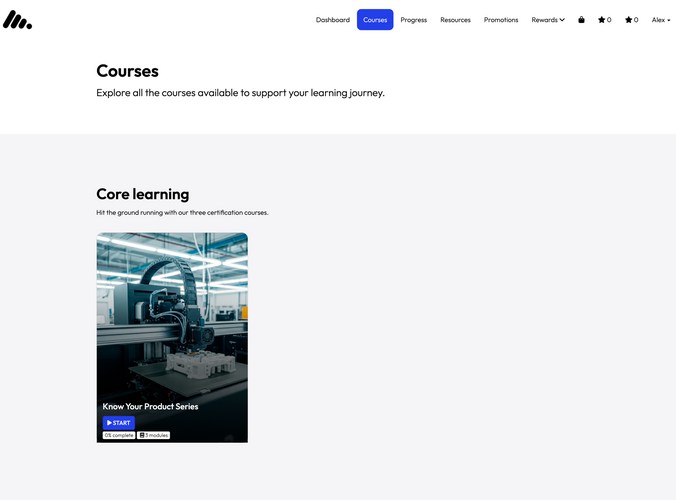 Screenshot 1: Courses page for Alex Morgan, showing only Know Your Product Series
Strict vs Lenient: what a course enrolment unlocks
The Role applicability setting decides how much a course enrolment unlocks. It doesn't change what learners see in their course list, only what they can open.
Lenient
A course enrolment grants access to the whole program. A learner enrolled in one course won't see the program's other courses listed, but can still open them with a direct link. Those courses open in view-only mode, with each module marked View only.
This is how course enrolments have always worked, and it stays the default for existing websites.
Strict
A course enrolment grants access to that course only. If a learner tries to open another course in the same program, access is denied. This covers everything inside that course, including its modules, certificates, files, images and content pages.
The program landing page itself still opens for any learner enrolled in the program.
Side by side
The table below shows what Alex Morgan, enrolled only in Know Your Product Series, experiences in each mode.
| What Alex does | Lenient | Strict |
|---|---|---|
| Views the course list | Sees Know Your Product Series only | Sees Know Your Product Series only |
| Opens Know Your Product Series | Opens | Opens |
| Opens the Core Learning landing page | Opens | Opens |
| Opens Smarter Selling Series with a direct link | Opens in view-only mode | Access denied |
| Opens a certificate, file or content page from Smarter Selling Series | Opens in view-only mode | Access denied |
Whole-program enrolments work the same way in both modes. A learner in the Certified Partners group, enrolled in the whole program, sees and opens every course.
See the difference: one learner, two modes
In both modes, Alex's learning page looks the same. The difference only shows when Alex follows a direct link to a course outside their enrolment, such as a bookmarked URL or a link shared by a colleague.
Under Lenient, Alex opens a link to Smarter Selling Series and the course opens. Its modules are marked View only, because Alex doesn't have an enrolment for this course.
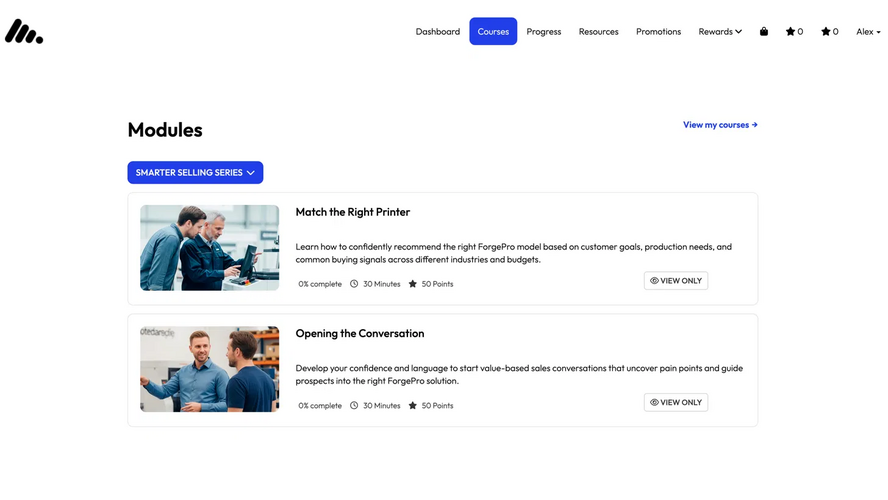 Screenshot 2: Smarter Selling Series under Lenient, modules marked View only
Under Strict, Alex opens the same link and sees a message saying they don't have permission to view the page.
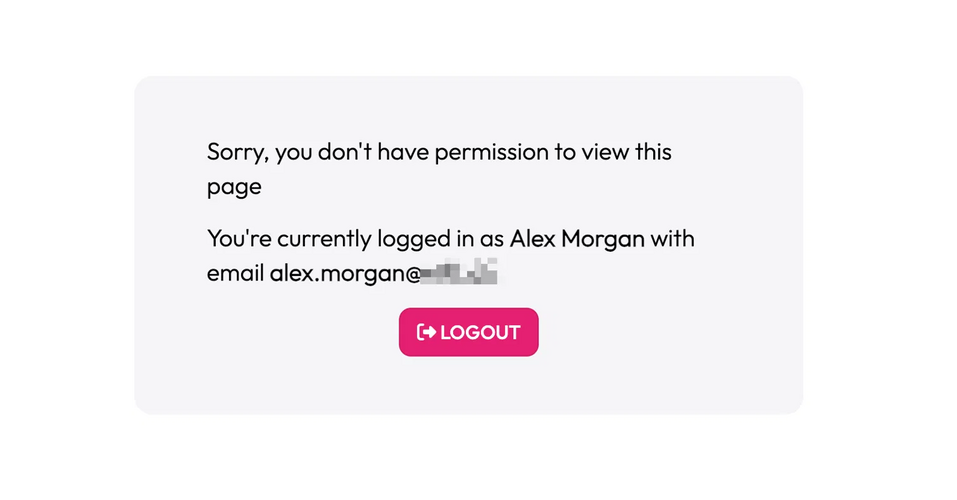 Screenshot 3: Permission message for Alex Morgan under Strict
If Alex needs Smarter Selling Series, enrol the Sales Partners group in that course too, or enrol the group in the whole program.
Enrol a group in a single course
An enrolment gives everyone in a learner group access to an elearning program, or to a single course within a program. Here's how to enrol the Sales Partners group in Know Your Product Series only.
- In the admin, go to Learning > Enrolments. You can also search for "Enrolments" in the admin search bar.
- On the Manage enrolments page, click Create enrolment.
- Under Enrolment details, select the group in Learners group, for example Sales Partners.
- Click Select programs and courses.
- In the dialog, choose the Website and Version that contain your content, for example partner-academy.
- Under Programs, select the program, then under Courses, select the course, for example Know Your Product Series.
- Click Apply, then click Create.
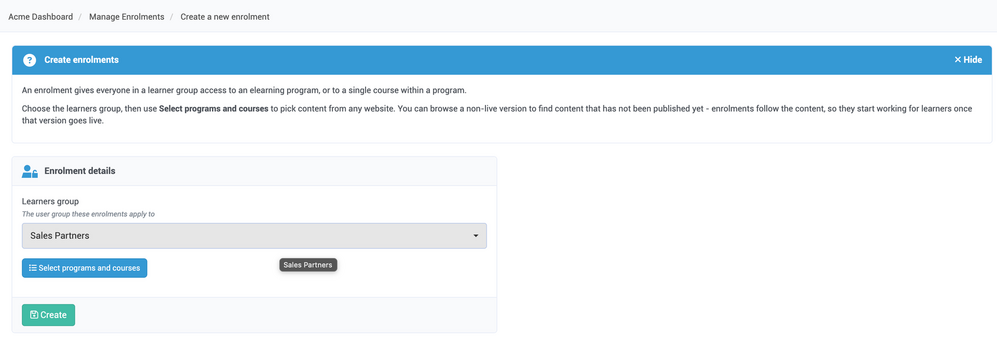 Screenshot 4: Create a new enrolment page with Learners group set to Sales Partners
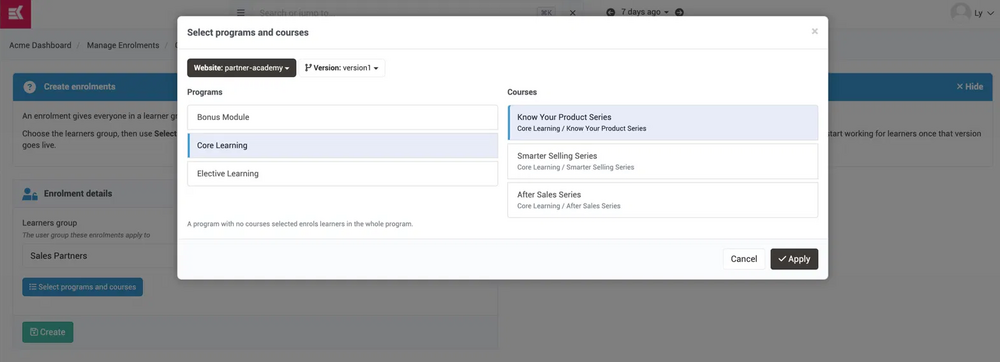 Screenshot 5: Select programs and courses dialog with Core Learning and Know Your Product Series selected
A few things to know when choosing content:
- No course selected = whole program. If you select a program without selecting any courses, the group is enrolled in the whole program.
- Several courses = several enrolments. If you select more than one course, a separate enrolment is created for each.
- Unpublished content. You can browse a non-live version to find content that hasn't been published yet. The enrolment starts working for learners once that version goes live.
Your new enrolment appears on the Manage enrolments page, with the course shown in the Course column. Whole-program enrolments leave the Course column empty.
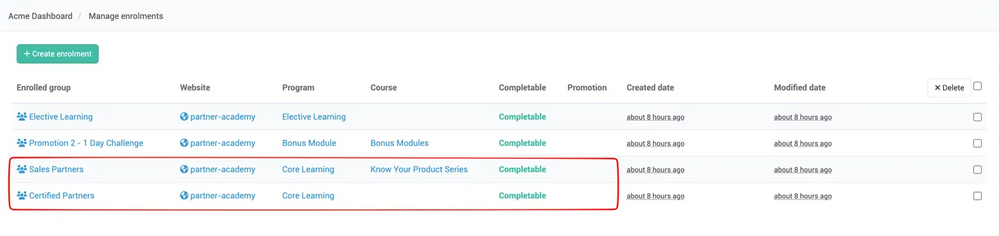 Screenshot 6: Manage enrolments page with a course-level and a whole-program enrolment
How to set Role applicability
You can set Role applicability for your whole account, and override it for individual websites. Kademi checks the website setting first. If the website is set to inherit, the account setting applies.
At account level
- Go to Manage applications and open the Installed apps tab.
- Find Learning and training and click its edit icon.
-
In Role applicability, choose an option:
- Lenient (default)
- Lenient, a course enrolement grants access to the whole program
- Strict, a course enrolement grants access to that course only
- Click Save.
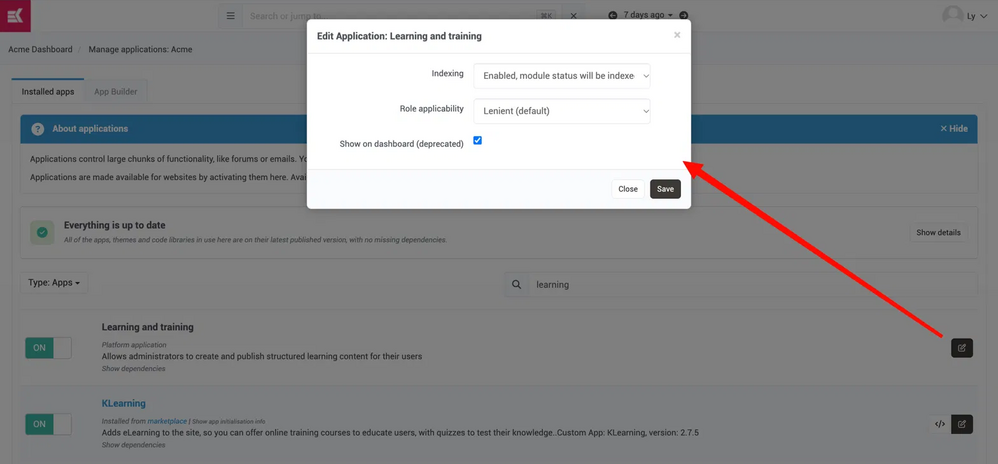 Screenshot 7: Account-level Learning and training settings, Role applicability
At website level
- Go to Manage Websites and open your website, for example partner-academy.
- Open the Apps tab (the cog icon).
- Find Learning and training and click its edit icon.
-
In Role applicability, choose an option:
- Inherit from account uses the account-level setting.
- Lenient, a course enrolement grants access to the whole program
- Strict, a course enrolement grants access to that course only
- Click Save.
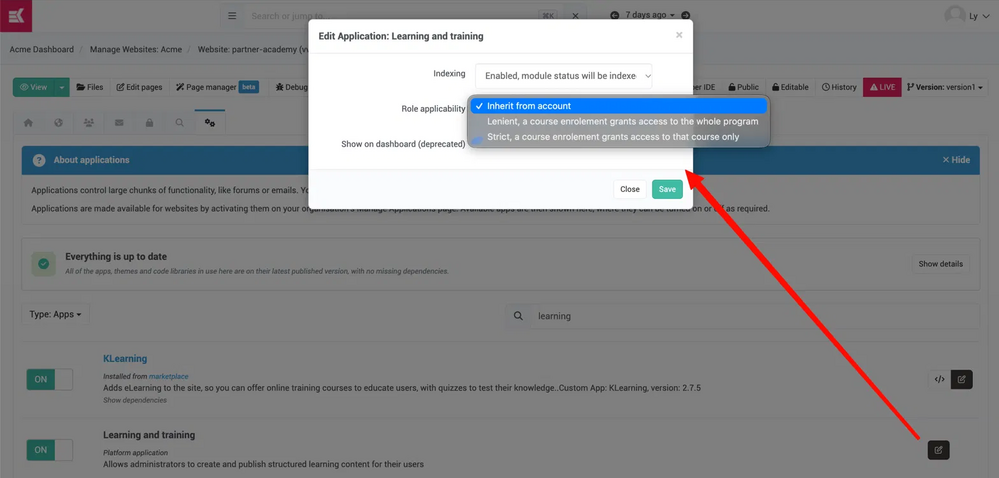
Screenshot 8: Website-level Role applicability options: Inherit from account, Lenient and Strict
The change takes effect immediately. You don't need to restart anything or republish your website.
Default settings for existing and new sites
- Existing websites stay on Lenient. Nothing changes for them until you switch to Strict yourself.
- New learning setups start on Strict. When you enable KLearning on a website that has no programs yet, Role applicability is set to Strict for that website automatically.
Websites that already have learning content are never switched for you.
Before switching to Strict
Strict is the tighter option, so check a few things before you turn it on for an existing website.
- Update your website apps first. Without the latest learning apps, learners may still see courses listed that Strict won't let them open.
- Review course-level enrolments. Learners who reach other courses in a program through a course enrolment will lose that access. Enrol them in the extra courses, or in the whole program, if they still need them.
- Check for Content viewer access. If a learner group also has the Content viewer role on your website, learners can still view other courses in view-only mode under Strict.
- Check whole-program enrolments. These should keep working exactly as before. Spot-check a learner to confirm.
If you change your mind, switch back to Lenient. Access to the program's other courses returns straight away.
Wrapping up
Learners now see only the courses they're enrolled in, whichever mode you use. Role applicability then decides what a course enrolment unlocks: the whole program with Lenient, or just that course with Strict.
If you run course-level enrolments and want them to mean exactly what they say, Strict is the option to choose. Update your website apps, review your enrolments, and switch it on at account or website level.
Need help planning the switch for your programs? Get in touch with our team and we'll walk you through it.